VIDA 2014D/2015A Windows 11
-
Hello everyone!
I have been working on upgrading old VIDA to work on Windows 11.
Tested on 2 PC's and working with DiCE (china clone) and J2534 devices.
Work i have done:
- Create installer (InstallShield) to make it easy for everyone to install.
- Upgrade Java to version 11.
- Upgrade JBoss to EAP 8.0.
- Upgrade to Microsoft SQL Server 2022.
- Custom visuals.
System requirements:
- Windows 11 x64.
- at least 2GB of RAM.
Language: Multi
Size: 6.65 GB
Format: 7ZipPM me for downloadlink! (Google Drive)
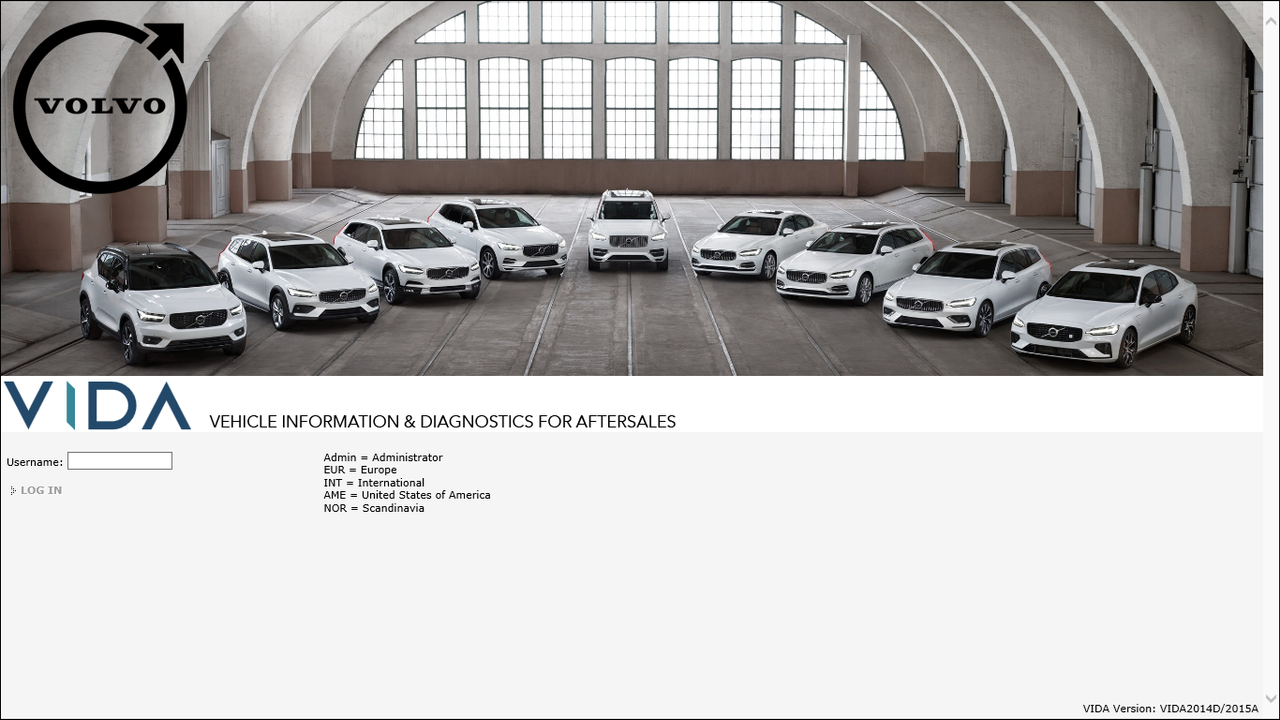
Screenshot of homepage:
https://i.postimg.cc/LXWKF9pF/VIDA-Home.png -
This post is deleted!
-
I created a VMware VM with WIN11 25H2 to test this. Installation worked perfect, but i noticed 2 problems.
VIDAMonitor errors out at system boot with an error "Can't connect to database". Switching the start type of the SQL service from "Automatic (delayed start)" to "Automatic" solved this.
The desktop link to start Edge in IE Mode doesn't work. Had to manually enable IE Mode and add localhost/vida. Additionally i used this https://github.com/LesFerch/IEModeExpiryFix to make this permanent instead of just 30 days. -
@T5-T6-Schnappi
Thank you for the feedback!I know about the Edge IE Mode, the fix i used has stopped working after edge updates.
I could add the fix you shared to the installation but they mention it does not work if Edge is signed in to an account.
As long as Internet Explorer works on latest Windows 11, i dont feel the need to fix Edge. (tested on 25H2)
I will see if i can fix the delayed start of SQL Server and implement it into the installer.
-
@ZaanTerror fixing the IE mode problem might be hard to impossible. But still good luck with trying it.
You should also clean the list of VINs in the vehicle profile tab. To do this you have to create 2 text files.
The first one needs the following 3 lines:pause
osql -S (local)\VIDA -U sa -P GunnarS3g3 -i clearVINS.sql
pauseand has to be saved as .bat file. For example clearVINs.bat
The second file has these 3 lines:
GO
delete from recentVINs
GOAnd needs to be saved as clearVINS.sql
Executing the bat file cleans the list of VINs without breaking anything.
-
@T5-T6-Schnappi
I use SQL Server Management Studio (SSMS) to edit the database.- Removed all recent vin's.
- Made a script to set SQL service to Automatic during installation.
- Permanent fix for IE Mode in Edge. (Is set during installation)
I am currently compressing and uploading the updated installer.
Will send u new link in chat soon.
Pleasy remove current version. (Only VIDA, no need to uninstall SQL Server)
Then install updated version and let me know if all is good.
-
@ZaanTerror I did some testing with your newest version of VIDA. This time i created a Windows 2 Go-USB Stick with WIN11 25H2.
Clean Installation worked fine.
VIDAMonitor starts without errors.
IE Mode in Edge works without user interaction.While playing with VIDA, I noticed 2 things.
When in parts catalogue, clicking on any position number in the parts diagram leads to a short freeze of Edge and the associated line in the parts list won't get highlighted.
The Software tab is completely empty/just shows a blank screen. As sw downloads don't work with this version of VIDA, and I look up sw numbers in Parts catalogue, this is no big deal for me. But still, is this intentional?
Both issues might be caused by the medium/low transfer speed of the USB stick I used, but I'm not sure. The overall performance feeling of your VIDA version is really good.As an additional suggestion. Would it be possible to integrate the drivers for Mongoose and VXDiag adapters, as these quite often can be found inside the housings of DICEs bought from chinese plattforms?
-
@T5-T6-Schnappi
Thank you for testing!
I could add the drivers as an optional part of the installation because not everyone needs them.
Could you provide me link to the drivers in chat?I will have a look into the other issues you had and report back later.
I must say VIDA depends alot on hardware as you run the Server and cliënt on the same computer.
I noticed VIDA becomes faster after using it for a while. -
01-02-2026 UPDATE:
- Upgraded JBoss EAP to version 8.1 update 3.(latest version available today)
- Upgraded Java to JDK 21.0.10. (Newer versions will break VIDA)
The download link will stay the same, when you download again you will have the newest version.
-
@ZaanTerror I just did another unplanned test and revived a completely borked VIDA Installation on an old WIN 10 Laptop thanks to your work and effort. Same issues. Empty Software tab and short lags/freezes in the parts catalogue when you click on the position numbers of any part in the parts diagrams. But still great responsiveness and speed compared to an original VIDA 2014D.
Will test your new version tomorrow. -
@ZaanTerror finally found the time to do some testing of your latest version (03.02.26 from MEGA).
Clean install worked flawless, as usual.
Playing a little on a 2001 S60 and a 2018 V60CC(P3) didn't bring up any problems. Diagnostics, parts catalogue and service functions were working as expected.
Good work!!! -
@T5-T6-Schnappi : so the 2018 models are recognized in this version of Vida? it's not limited to 2015 only?
-
@sizan this version is patched to support some P1 and P3 cars up to 2019. But for my V60CC with a VEA engine I have to use a workaround. Cross Countrys are only supported in the US partner group, and only with 5 cylinder petrol engines. The workaround is explained here https://svdns.info/2022/01/15/using-vida-2014d-with-an-unsupported-vin/
-
 T T5 T6 Schnappi referenced this topic on
-
26-02-2026 UPDATE:
Improved installation and uninstallation sequence.
Upgraded to SQL Server 2025 Standard Developer.
Upgraded JBoss EAP to version 8.1 update 4.(latest version available today)The download link will stay the same, when you download again you will have the newest version.
-
Thank you for this release of Vida together with Windows 11. It was just to unzipping the file and starting the installation, and after a while everything was up and running since you had also attached the other files that you otherwise had to download yourself.
So again, a BIG THANK YOU for this
 .
.