
GUIDE: How to obtain the CEM pin on any PreFL P2 (S60I, S80I, V70II, XC70I, XC90I MY 1999-2004) in around 60 seconds
-
WARNING! The software shown here is still experimental. Using any other functions/options than the ones shown in this guide can and will brick your car as they are not working (yet) or are unreliable to use. You will get zero support from anybody if anything goes wrong.
Please read the whole guide before you start.
This Guide should work for all brick shaped CEMs (CEM-B) with the following part numbers:
8602436
8645171
8645200
8645205
8645716
8645719
8688434
8688436
8688513
9452553
9452596
9469809
9494336
9494594
30657629Prerequisites:
Laptop with Windows 10/11
Original DICE / Full Chip DICE Clone or Mongoose Pro/Super J2534; other adapters do not work for this
Optional: Battery charger/tender if your battery can’t maintain a stable voltage of 12,5V+ for around 10 minutes with Ignition on-Download OpenMoose Renatus from here http://www.openmoose.net
-Unpack the archive to a folder of your choice and start the OpenMoose .exe
-Click on “Settings”(1.)
-Select your adapter type “DICE” or “Mongoose”, and the Baud rate “125/250 (-2004)” (2.)
-Connect the adapter to your car and turn the ignition to Pos. II (Ignition on/Engine not running)
-Click on CEM (4.)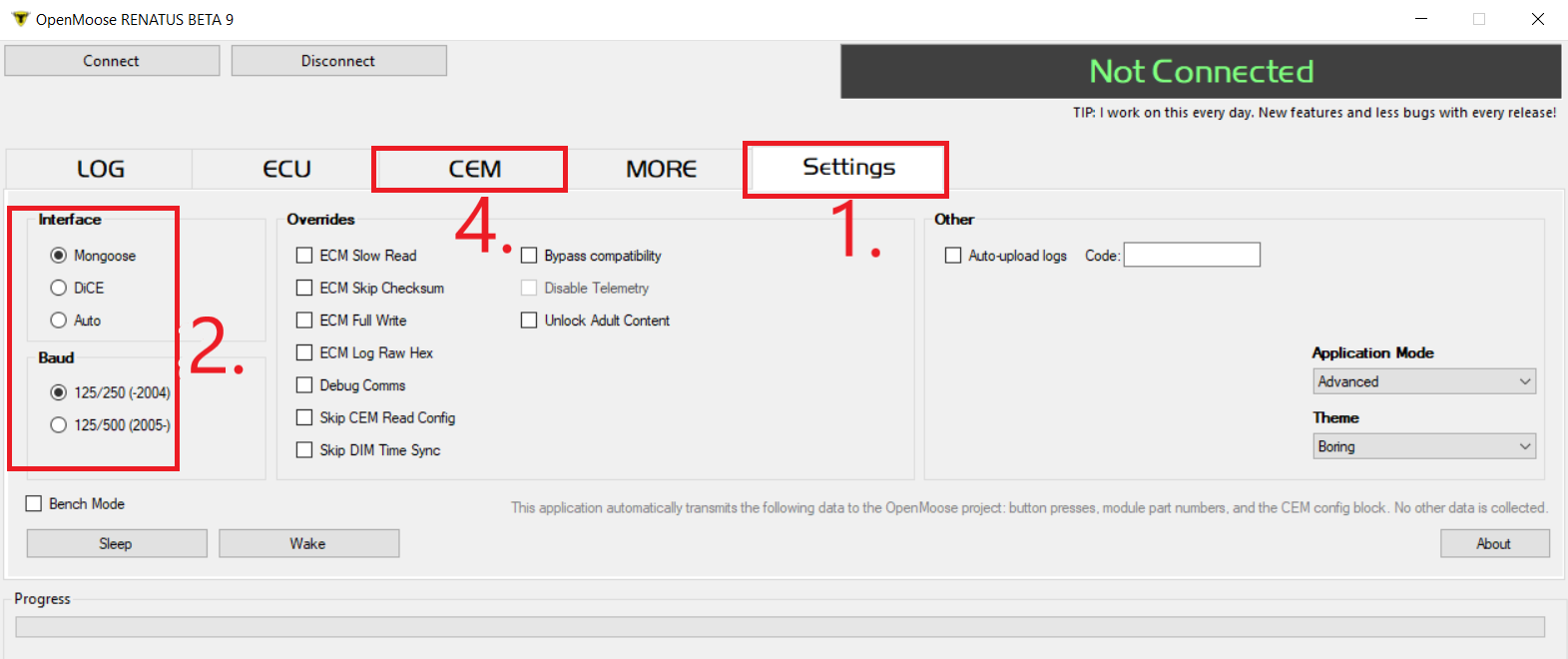
-Click on “Connect” (5.) and wait until your vehicle type and model year is shown in the top right corner.
-Click on “Fast recover PIN”(6.)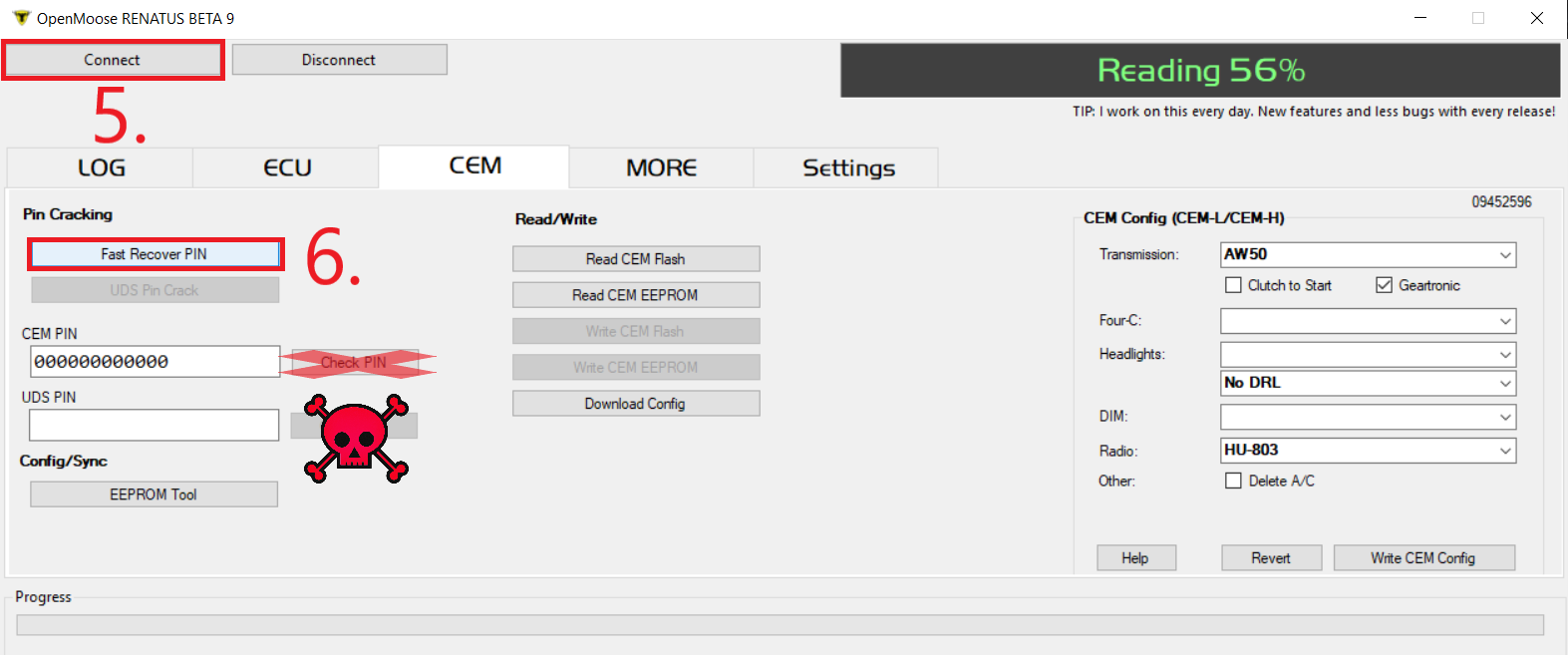
-It should take 60-180 seconds to retrieve the PIN, depending on the adapter you are using
-If a PIN is found, write it down or make a screenshot
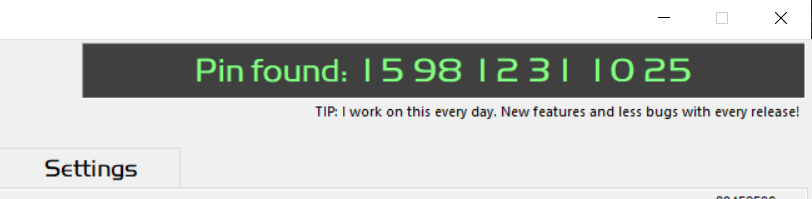
-DO NOT USE THE “Test PIN” OPTION!!!
-Click on “Disconnect” and close OpenMoose
-Ignition OffUse this form https://d5t5.com/helpdesk/create/ticket/pin to add your PIN to the Vdash database
Or do it from within Vdash:
-Switch the Ignition to Pos.II
-Start Vdash and connect to your car
-Once all modules have been loaded, click on “Security”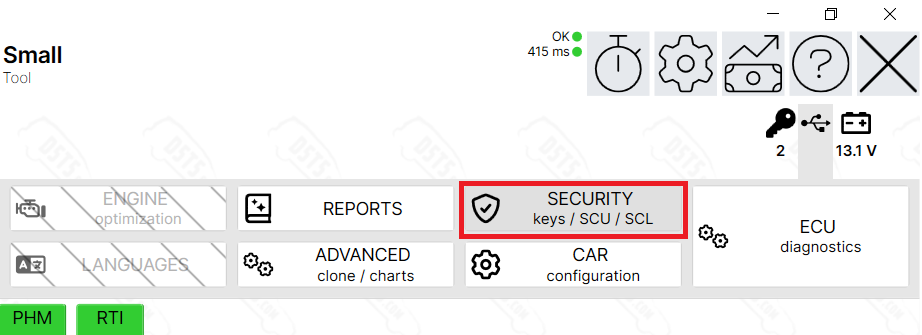
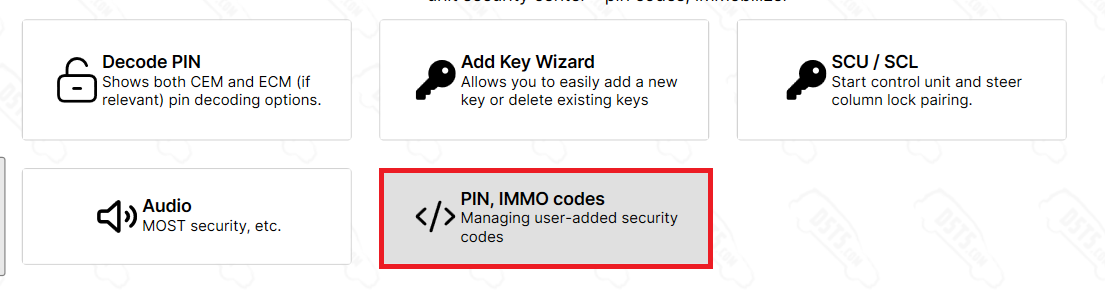
-Click on “PIN, IMMO Codes”
-Click on “Add PIN” (1.) and enter the PIN without spaces
-Click on “Continue” (2.) and wait a moment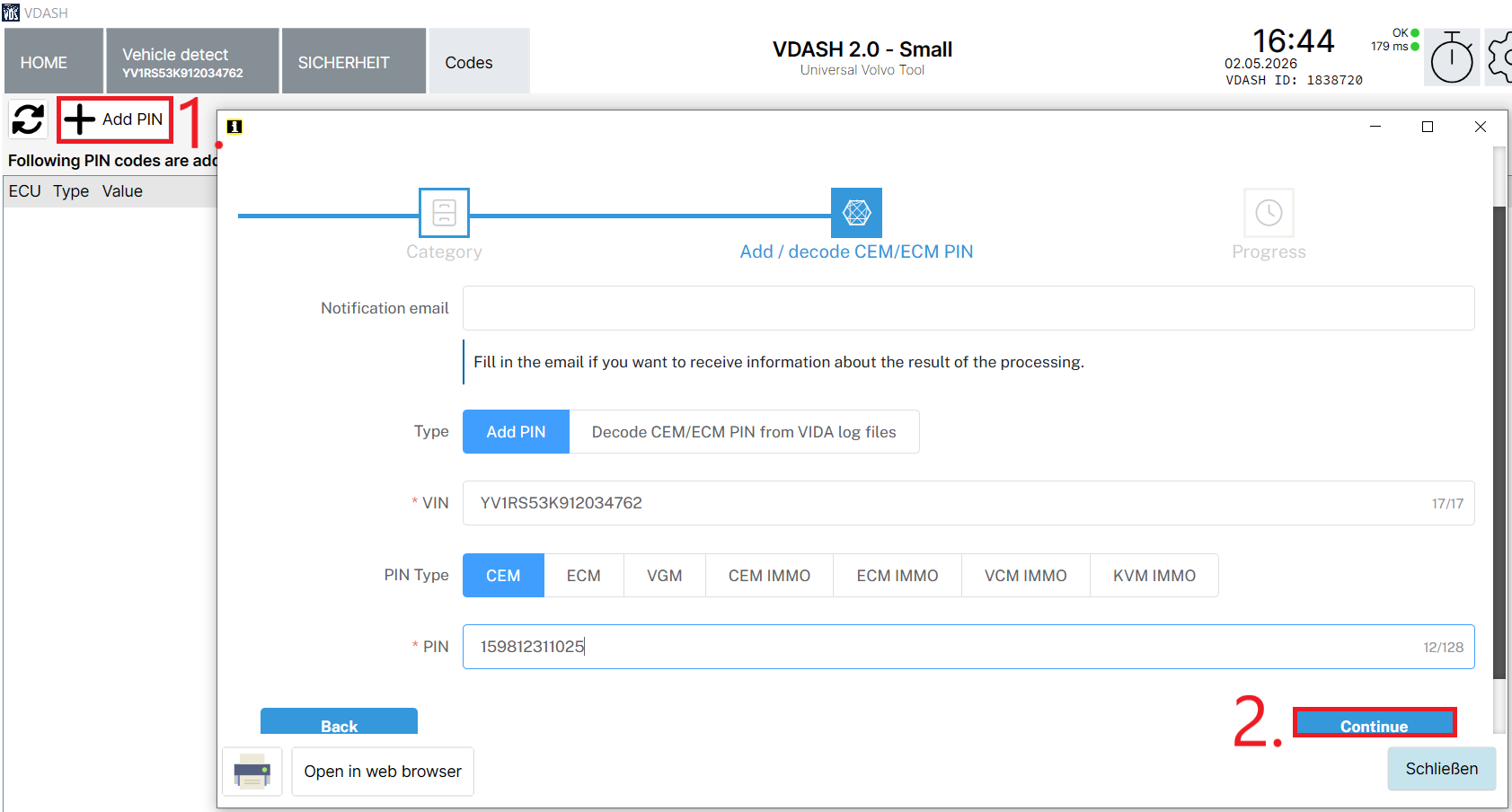
-Close all Tabs in Vdash, wait a short moment for Vdash database to update, and reconnect to your car
-Check if your PIN was successfully added in Vdash
-Go to “Security”/”Manage PINs” (again), and see if your PIN is listed
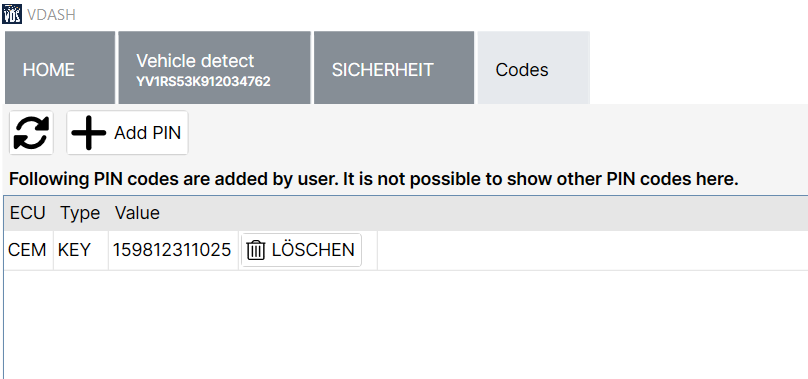
-Done
If no PIN is found, your only option is bench reading. The teensy method https://github.com/vtl/volvo-cem-cracker/tree/cem-b will also not work as it uses the same approach.